How Do I Use Templates And Variables In WordBoard?
Variables are placeholders that WordBoard fills in when you tap a key. Add them to a key's Phrase by typing them, or tap Variable in the key editor to insert one.
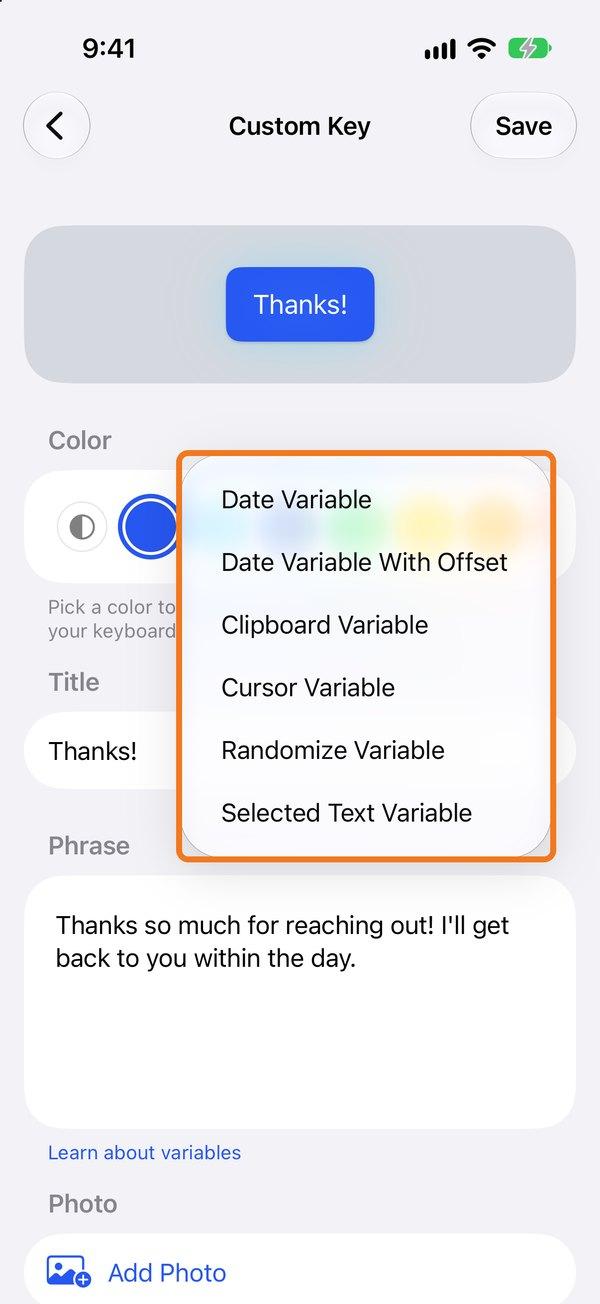
Available variables
{{ date:"d MMM yyyy" }}– today's date or time in any format. See the date formats.{{ datehouroffset:"h:mm a", 2 }}– the time, moved forward or back by a whole number of hours.{{ clipboard }}– whatever text you last copied.{{ selected }}– the text you've selected.{{ cursor }}– where the cursor ends up after the key is typed.{{ randomize:"Thanks|Thank you|Cheers|😃|👍" }}– picks one of the options at random.
Example
Hi {{ cursor }}, thanks for your email on {{ date:"EEEE" }}. {{ randomize:"Cheers|Thanks|Talk soon" }}
Tips
- Every option needs quotes around it, including the closing quote:
{{ randomize:"A|B|C" }}. - Variable names aren't case sensitive, and you can use
=instead of:. - To make one option come up more often, repeat it:
{{ randomize:"Hi|Hi|Hello" }}. - Press Return in the Phrase to add a line break.
- If nothing is copied or selected,
{{ clipboard }}and{{ selected }}are left blank. - Only the first
{{ cursor }}in a key is used. - Variables also work inside AI Key prompts.
Just want the date without any typing? Add a Date & Time Key from the + button instead.