7 Minute Workout Voice, Music And Audio Settings
Yes, you can work out to your own music in 7 Minute Workout. Here's how, plus what each voice, audio and video setting does.
Working out to your own music
- Start your music or podcast in Apple Music, Spotify or any other app.
- Open 7 Minute Workout and start your workout. Your music keeps playing.
- To hear only your music, go to Settings → Audio and turn off Spoken Cues.
- To keep the trainer, leave Spoken Cues on and turn on Lower Music Volume, so your music dips while the trainer speaks.
You'll find the rest of the settings in the Settings tab:
Trainer voice
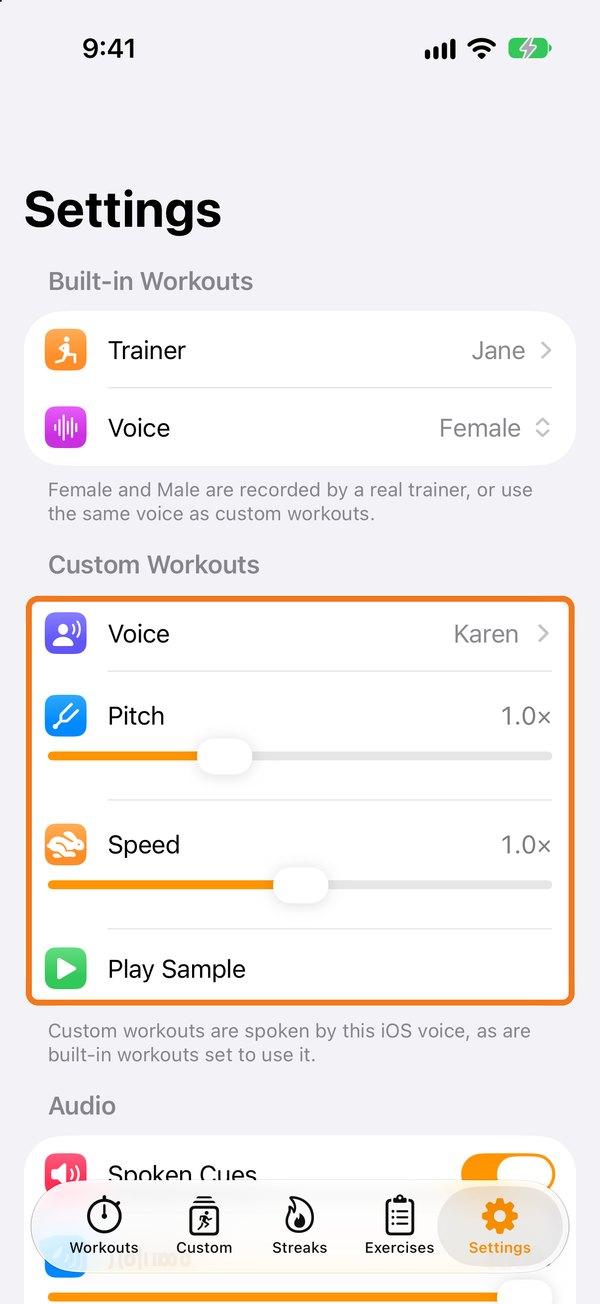
- Voice (under Built-in Workouts): Female or Male, recorded by our trainers, or the same iOS voice as your custom workouts.
- Custom Workouts → Voice, Pitch and Speed: the iOS voice used for custom workouts. If it talks too fast, lower the Speed. For a better-sounding voice, download a Premium voice.
Audio
- Spoken Cues turns the trainer's voice on or off.
- Volume sets how loud the trainer is.
- Lower Music Volume turns your music or audiobook down while the trainer speaks.
- Countdowns sets how many seconds the trainer counts down at the end of each exercise and rest.

Audio going to the wrong speaker? Swipe down to open Control Center, touch and hold the music controls, and pick your headphones or speaker.
Videos
If an exercise shows a still image, tap the video. It may be paused. Make sure you have the latest version of the app from the App Store.